Web Features
RFQ-> Supplier Quote Comparisons – Now indicates the best supplier price for each part number in an RFQ
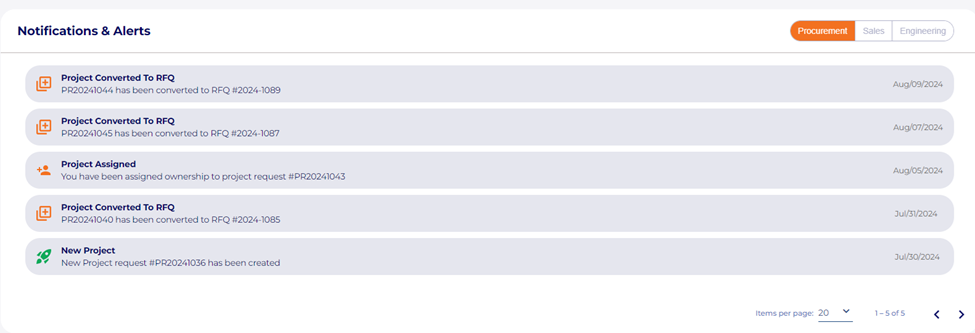
 MESH Alert Board-> Now includes all notifications from the portal on the alert board located on your main portal dashboard.
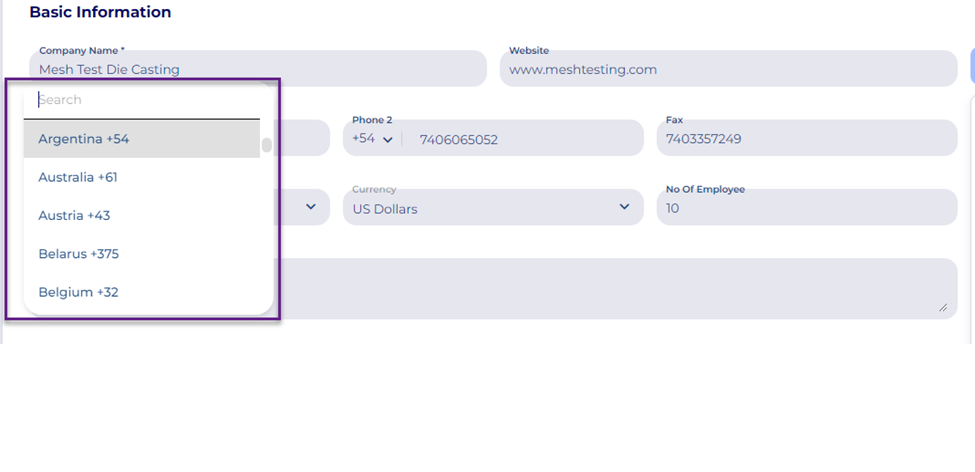
 Company profiles-> We added a dropdown selection for country codes to be added to phone numbers.
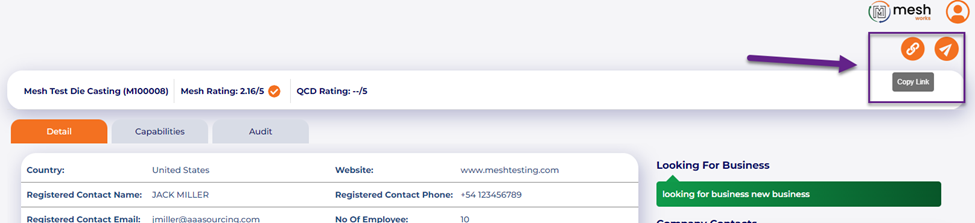
 MESH Sourcing -> Suppliers can preview and share their MESH profiles using a copy/paste link. In the MESH Supplier profile section, there is a new button at the bottom to preview and share your profile:
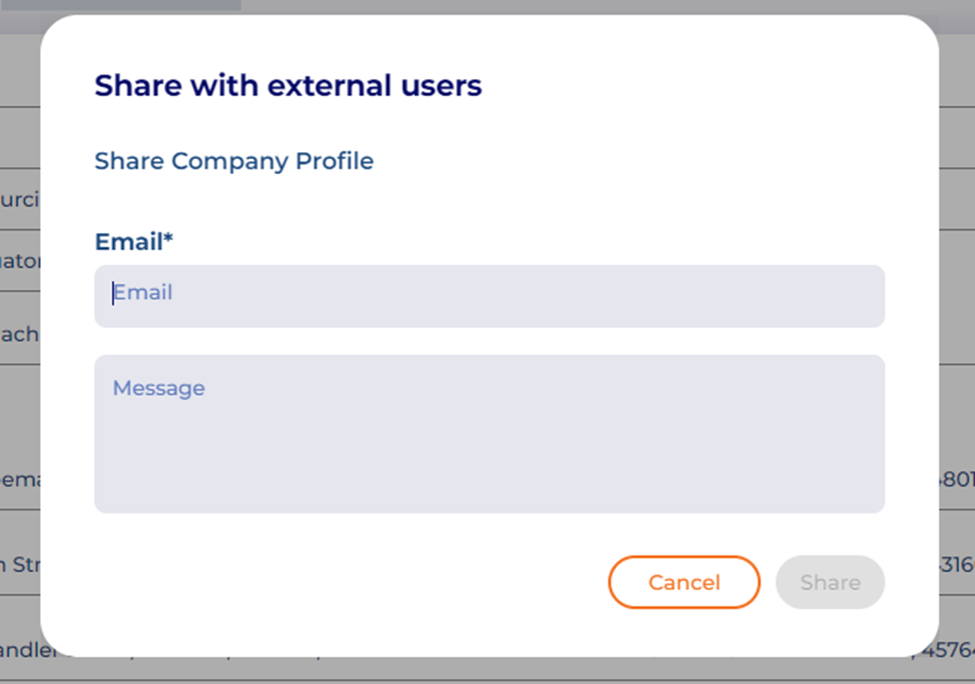
 On the preview page, you can view your profile as a potential customer would see it and choose to copy a link or to share it externally with any email address with a personalized message:
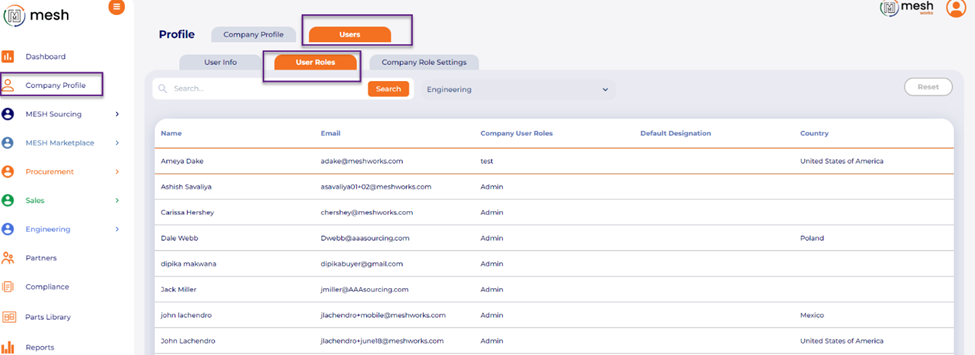
 Company profile-> User Roles and Permissions: We have standardized this page and combined these settings and permissions into a single page to make managing all applications/modules easier.
Under the company profile, go to users and select the tab “User Roles,” here you can see the entire list of users in your organization and update their role type for each application (engineering, procurement, sales)
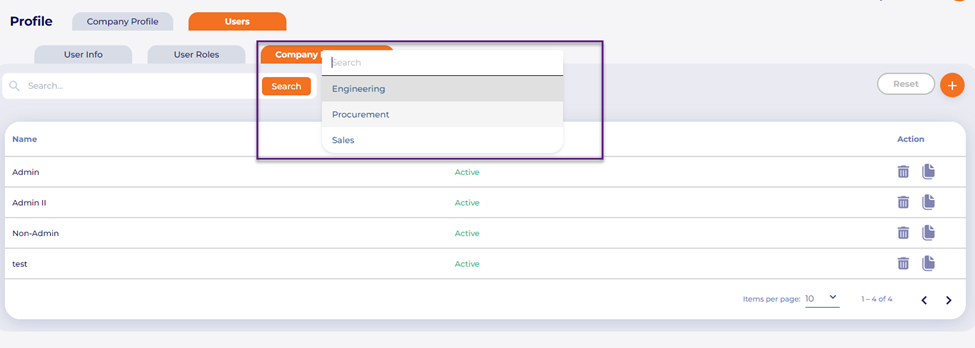
 You can also go to the next tab, “Company Role Settings” to add new roles and adjust permissions for all user types for each application/module:
 Parts library: We added functionality allowing users to upload their parts to their library using an Excel template.
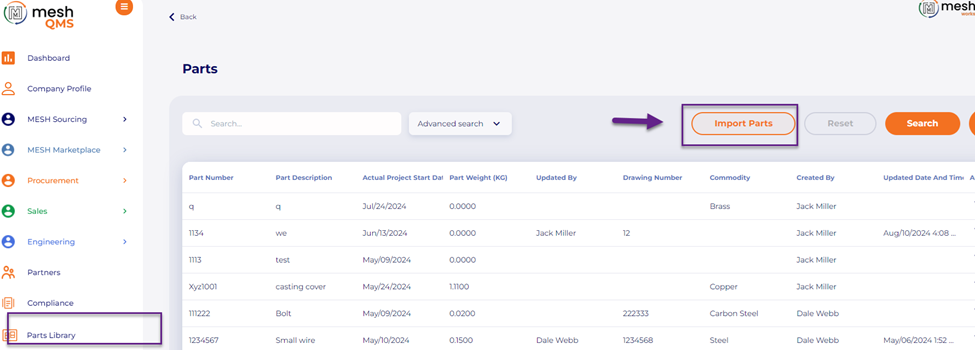
Go to the part library page and select “Import Parts”
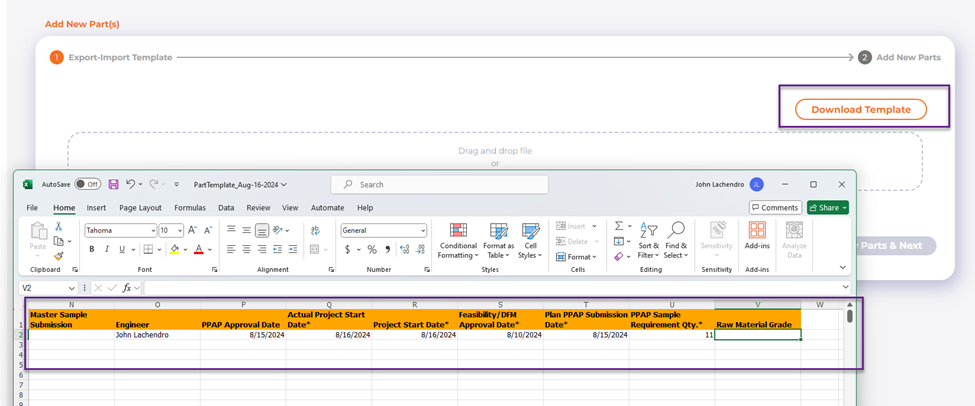
 From here, you will be prompted to download the template, which is an Excel formatted document. Complete the required fields and upload it to the page, then select “Import New Parts & Next:
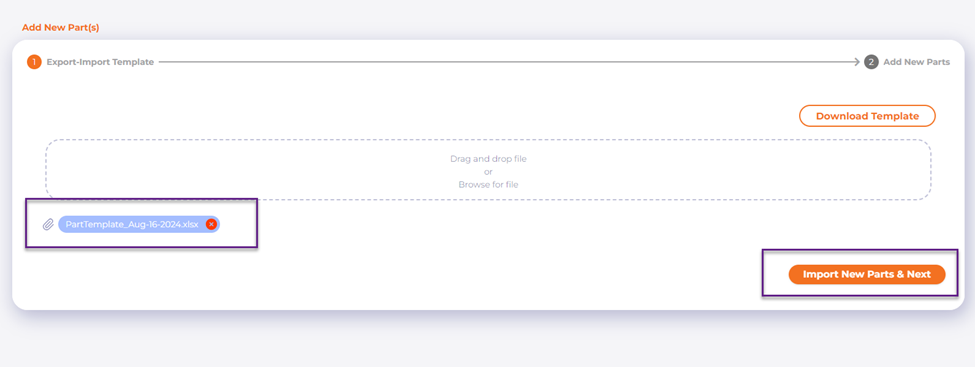 After they are imported, you can make additional changes or additions before adding them to your database of parts:
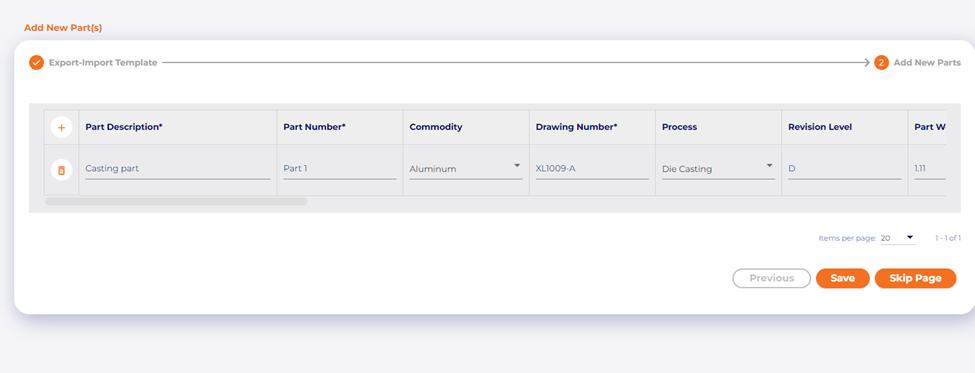 MESH Sourcing-> Saved Searches Feature: This new feature allows users to build a search for suppliers in our sourcing database using our advanced search functions and save the search for future use. It also triggers notifications to users when new suppliers that meet these criteria are added to the Mesh Sourcing network.
Go to the Mesh Suppliers list page under Mesh Sourcing, click on advanced search, select your criteria, and press the “Search” button at the top. Then, click the “Save Search” button to name and save the search. Once this is done, you will be notified each month that a supplier that matches your saved search criteria is added to MESH Sourcing.

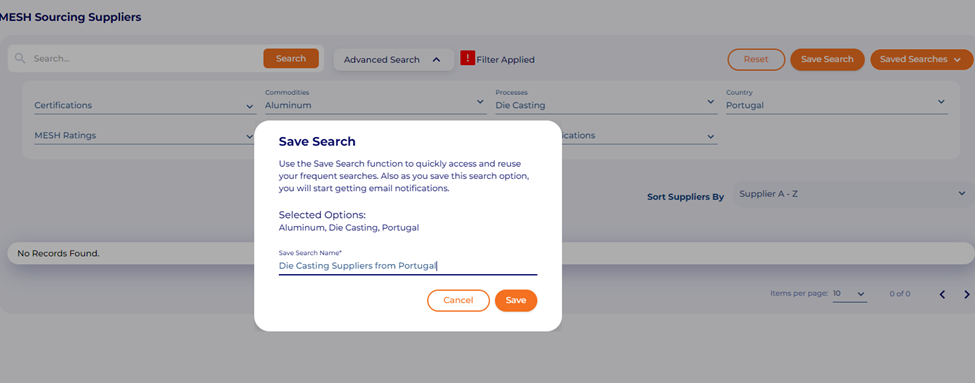 To turn off the notification, delete the saved search from the “Saved Searches” dropdown selection.
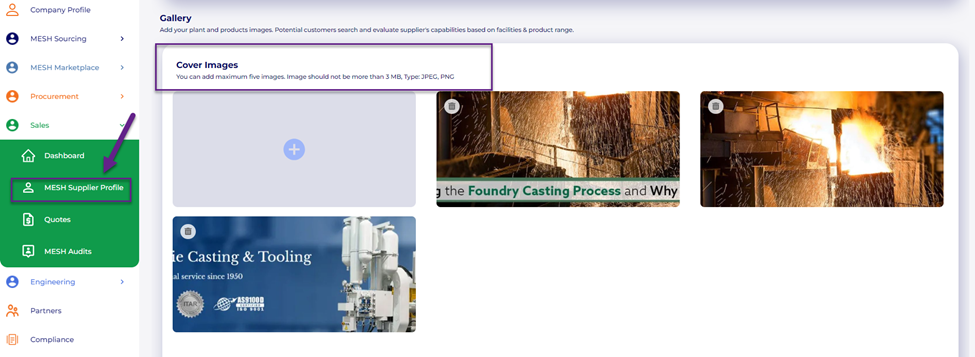
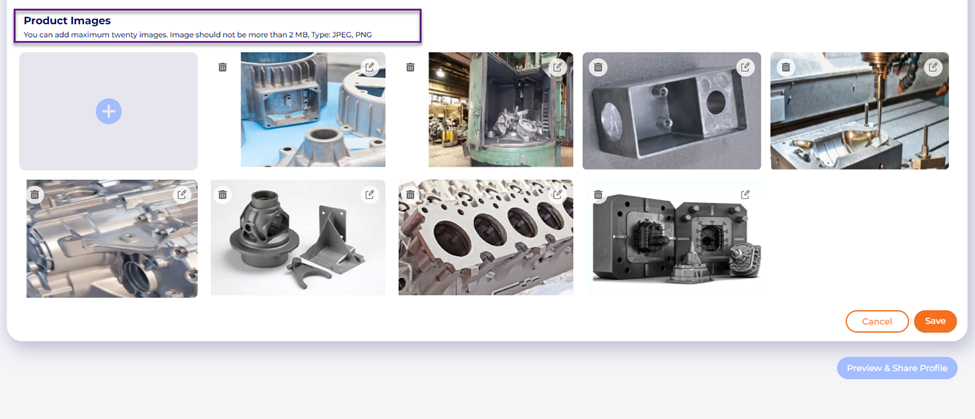
 MESH Supplier profile image gallery: This new feature for Premium MESH Sourcing suppliers allows them to post product galleries and company wallpaper images in their profiles.
Go to your MESH Supplier Profile in the Sales module, and at the bottom, there is a Gallery section where suppliers can add cover and product gallery images to their profile. Once uploaded, users can preview their profile to know what it looks like to external customers:
 MESH Suppliers can now add an icon “looking for business” in their profile where they can describe the types of parts or projects they are actively seeking from buyers.
Go to your MESH Supplier Profile; under Additional Capabilities, users can indicate the type of business they are looking for from potential customers:
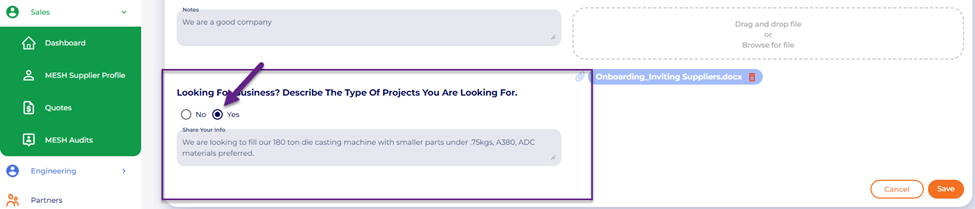 When potential customers view your profile, they can also see the icon “Looking for Business” and the details from the MESH Sourcing list page, and also when viewing inside your company profile:
Buyer View:
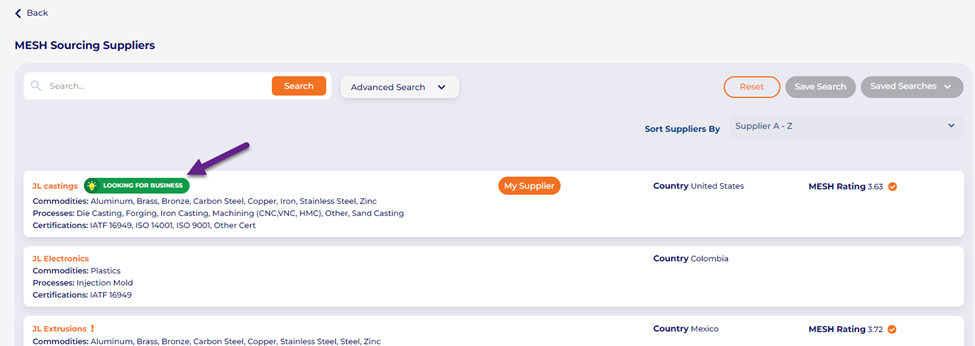
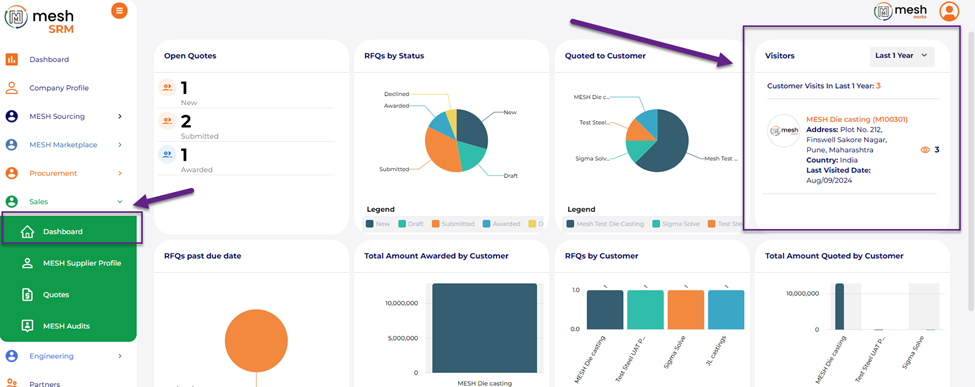
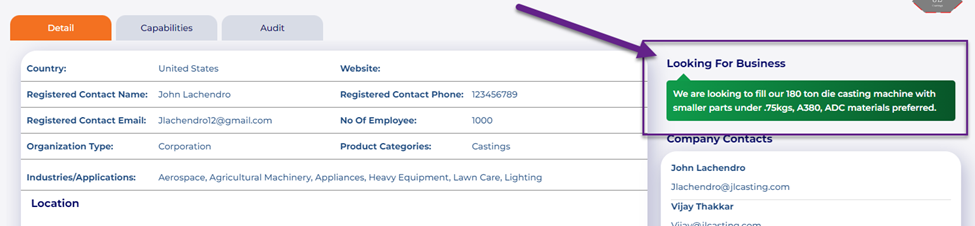 Mesh Supplier profile views-> Premium Mesh Sourcing suppliers can now see which companies have viewed their profiles on the Mesh Sourcing portal.
Go to the Sales Module and click on the “dashboard” option. On the top right is a widget showing what companies have viewed your profile in the past year. You can view the company name, address, and country, and it will count for each visit they had to your MESH profile.
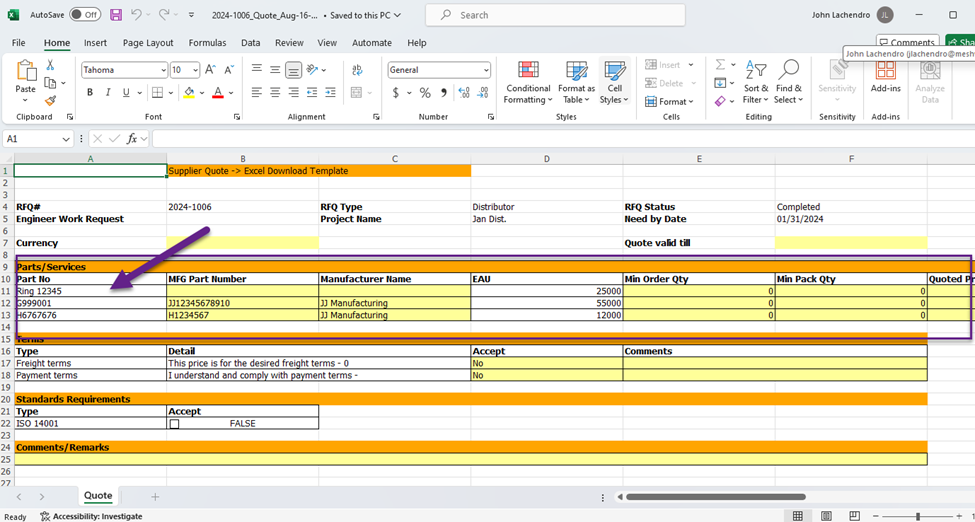
 RFQ Templates-> Distributor Quote template—We have updated this quote template to list all parts in rows instead of columns in the Excel download to help suppliers more easily complete the quotes for large quantities of parts.
 Mobile Features
Added the MESH Sourcing Marketplace for MESH Mobile app users.
Download the MESH mobile app from the Apple or Android store, log in using your web credentials, and go to the MESH Sourcing Marketplace.
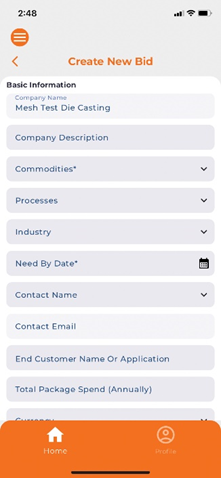
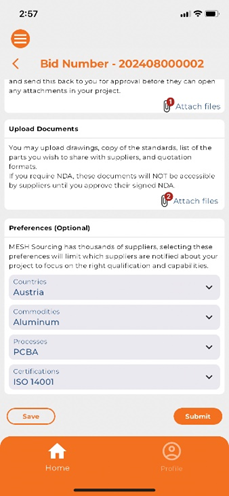
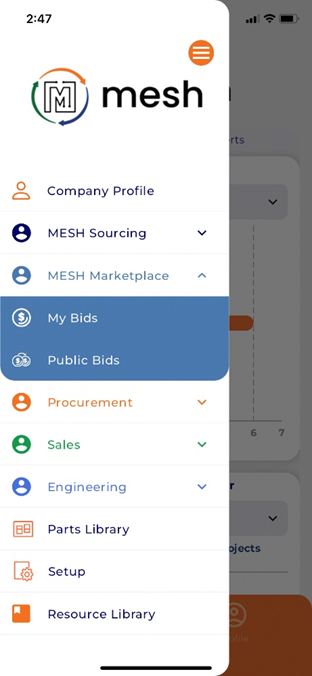 Under the “My Bids” section, users can create bids by adding basic project information such as commodity, process, project details, etc. Users can indicate whether or not an NDA is required, and if so, suppliers must be approved before they can open any documents in the project. This is a great way to leverage the MESH Sourcing database, which contains thousands of suppliers worldwide.

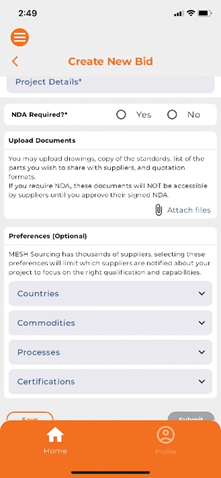 Select which suppliers from the MESH Sourcing database you would like to notify this project about. You can filter by country, commodity, process, and certification type.
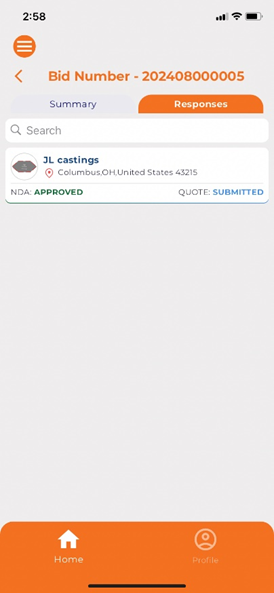
 Suppliers respond by signing your NDA and requesting approval to bid on a project. Users can review the supplier responses and their respective profiles before approving them to bid:
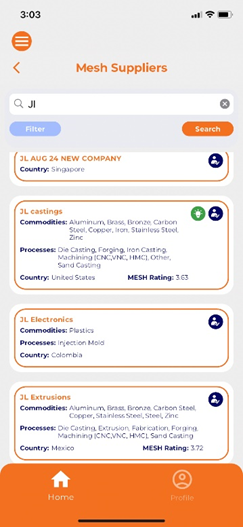
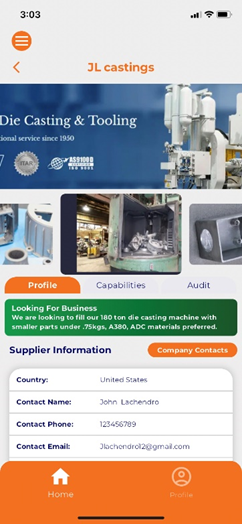
 MESH Sourcing Suppliers-> Added a feature that allows suppliers to explain what type of parts or projects they are looking for.
The “Looking for Business” icon, which suppliers can activate in their web profiles, is now viewable in the mobile app.