Engineering- New Features on Web
New Feature to Modify the Closure Requirement from the User APQP Project Template.
Modify Closure Requirement
This permission allows users to change the Closure Requirements even when an APQP Template is in use.
The "Modify Closure Requirements" permission is the part of the Template permissions and associated as Company Profile > Users > Company Role Setting > Permission >> Templates >>> Modify Closure Requirement.
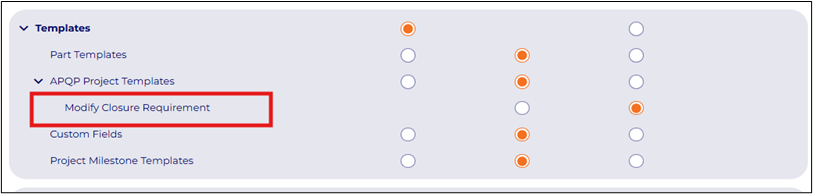 To get the "Modify Closure Requirements" permission, users need to have “Write” permission for APQP Project Templates.
If a user doesn’t have Write permission for APQP Project Templates, they won’t get the "Modify Closure Requirements" permission.
How to Make changes in Closure Types
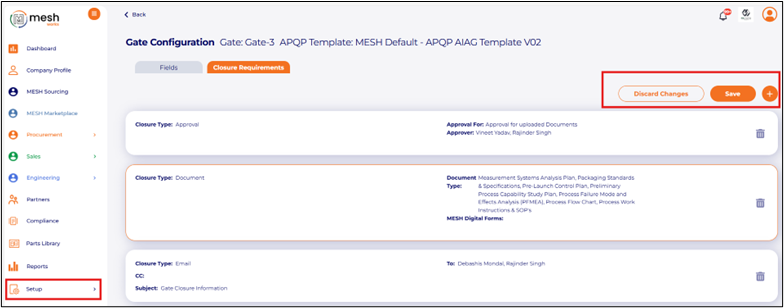
Setup > All Templates > APQP Project Templates > APQP Project Templates List > - Approvals: Users can edit, add, or remove individuals from the approves list for gate configuration approvals.
Document: Users can modify the types of documents required for closure at each gate, including adding or removing documents.
Email: Users can add or remove the recipients or entirely deleting the closure requirement for any APQP template.
 To get the "Modify Closure Requirements" permission, users need to have “Write” permission for APQP Project Templates.
If a user doesn’t have Write permission for APQP Project Templates, they won’t get the "Modify Closure Requirements" permission.
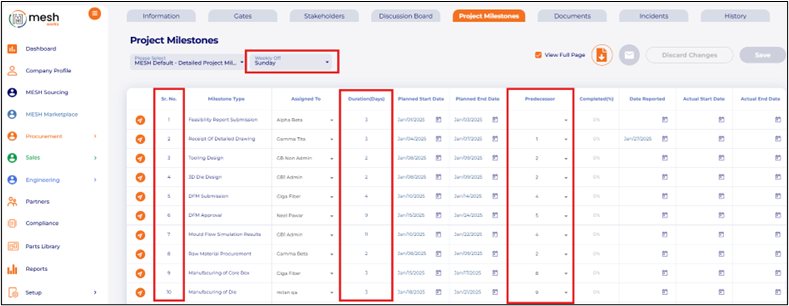
APQP Project Milestone/Timeline- Added Serial Number, Duration and Added option to select the Predecessor Milestones.
The APQP Project Milestone now includes the serial numbers for each milestone. Users can view the defined duration (in days) for each milestone and select predecessor milestone(s) to identify dependencies within the project timeline. This functionality allows customers to clearly identify and understand the corresponding predecessor milestone numbers.
 New Feature on Mobile App
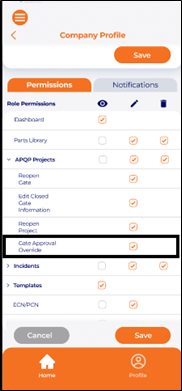
APQP Projects - APQP Gate approvers- A new permission created to allow user to approve for other users
A new permission has been created to allow users to approve requests on behalf of other users in the APQP (Advanced Product Quality Planning) process. This feature facilitates collaboration and streamlines the approval workflow by enabling designated approvers to act on behalf of their team members as needed.
A. Set up for Gate Approval Override
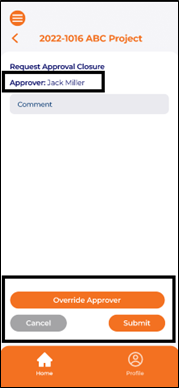
 B. Option to override the Gate approval (if user has permission to override the Gate Approval)
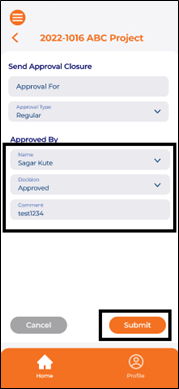
C. User who has permission to override the Gate Approval, can user this option to approve the gate on behalf of others. User needs to select his name from the drop down and can submit the decision-
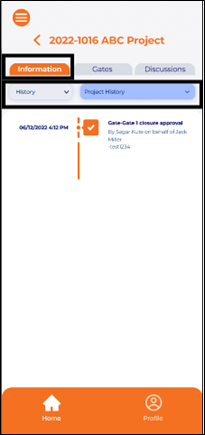
 D. APQP Project History- Overrided approvals monitored in the Project history-
 Procurement & Sales- New Features on Web
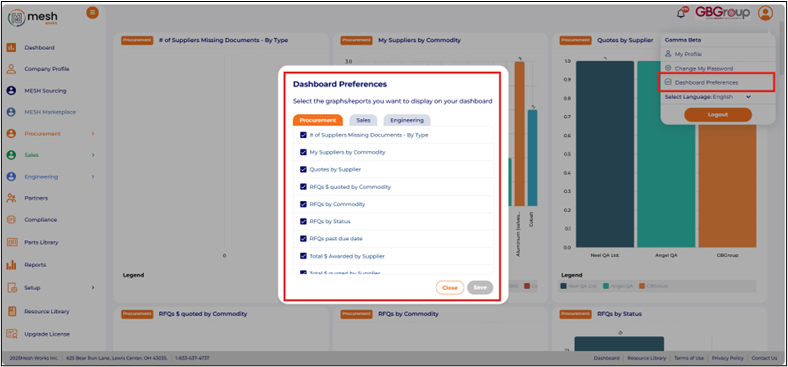
Dashboard consolidated at portal level
All Report/Charts from Engineering, Sales, and Procurement dashboard are on the portal dashboard.
 Users are allowed to select any report/chart from any of the 3 applications-
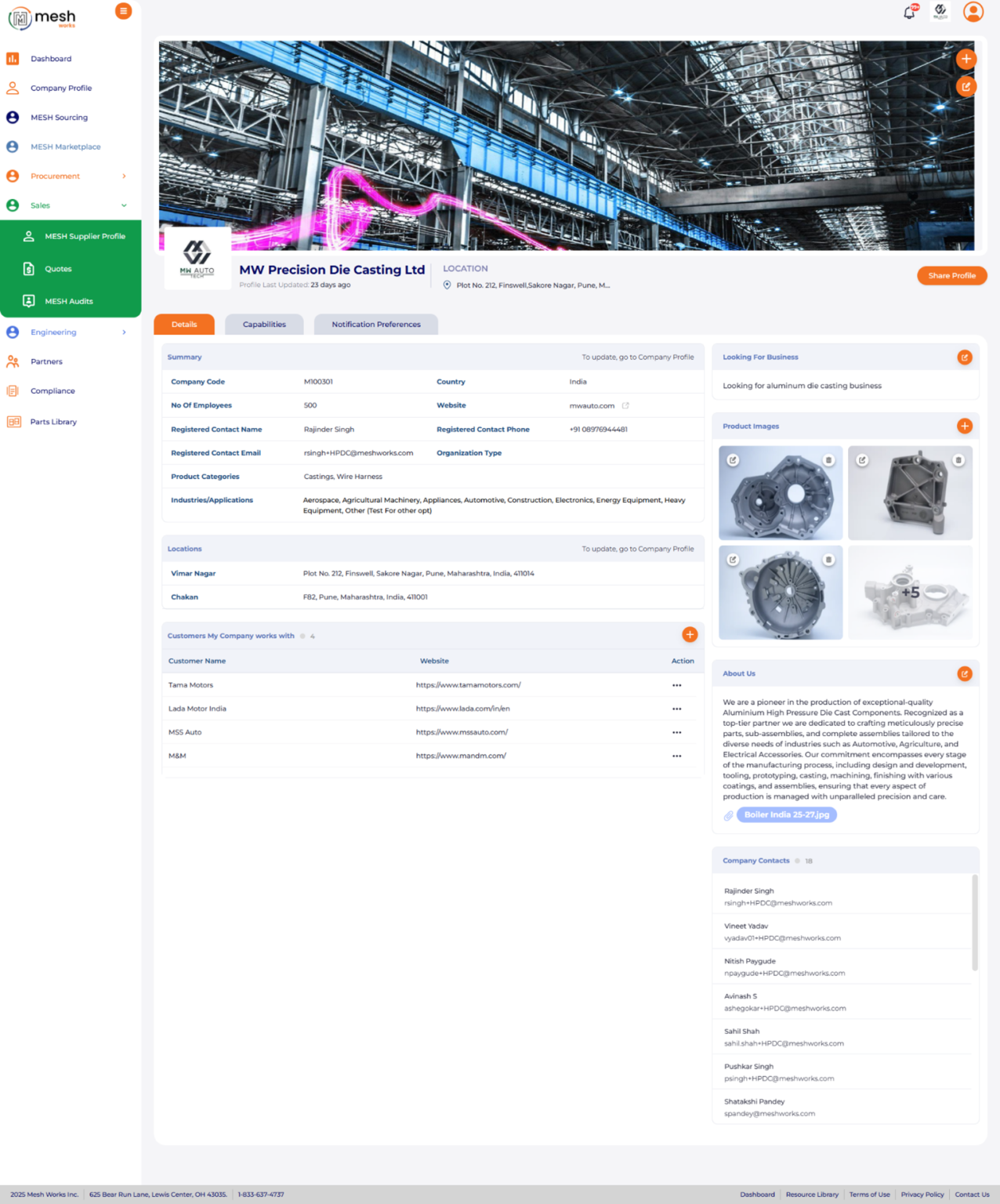
 New User Interface for MESH Supplier Profile
Sales > MESH Supplier Profile
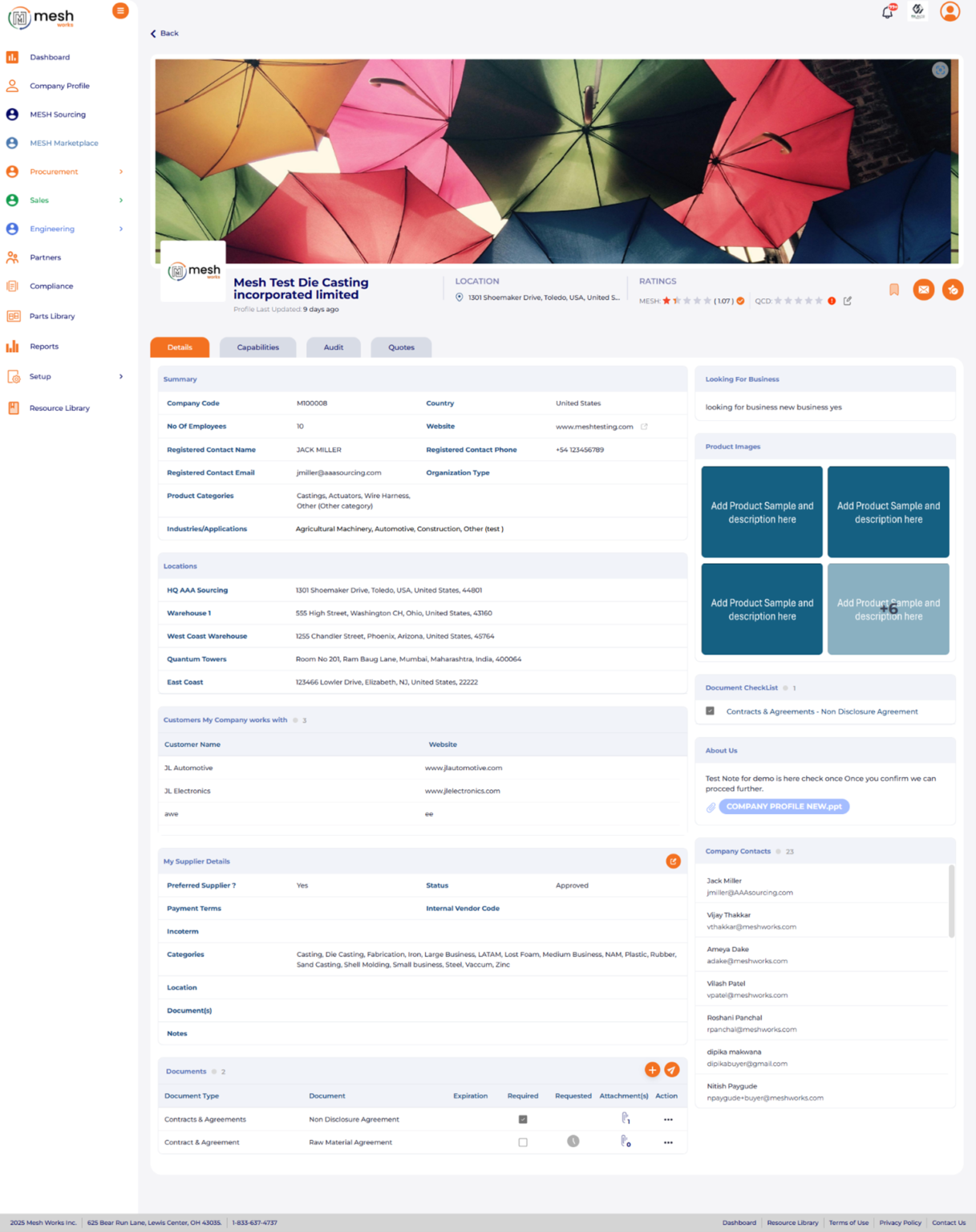
 New User Interface for Buyers
 Procurement & Sales- New Features on Mobile App
[APP] Portal Menu Updates- Added Partners menu
Added Partner Menu with icon to the left panel.
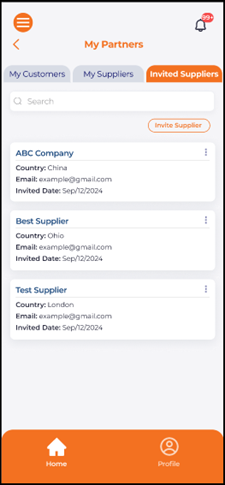
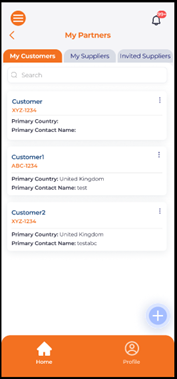
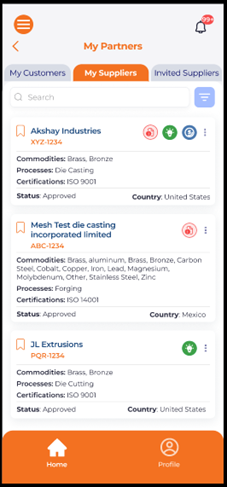
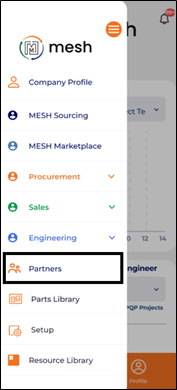 After Click on Partner menu, user will redirect to the My Partners screen, Including three tabs:
My Customers
My Suppliers
Invited suppliers
 My Suppliers Tab
 My Customers Tab
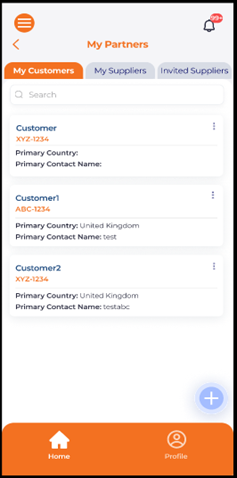 Invited suppliers Tab