Engineering- Web Features
Feature to mark the APQP Project "Hold" and Move to Hold Projects List with Remarks/Reasons.
Location: Tenant Login → Engineering → APQP Projects → Project information
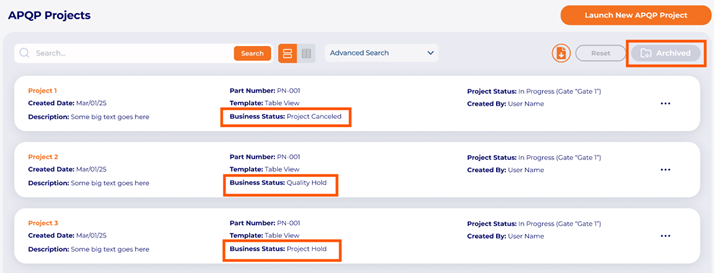
A new "Business Status" field has been added with a drop-down option in the APQP Project Information interface, along with the existing fields.
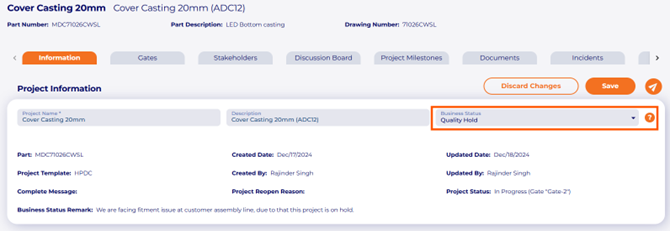 By default, the Business Status will be empty.
Users can choose from these options in the drop-down:
Clear Status
Quality Hold
Project Hold
Project Cancel
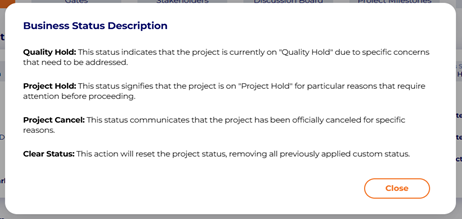 a. Business status can be used to share the status on APQP Project.
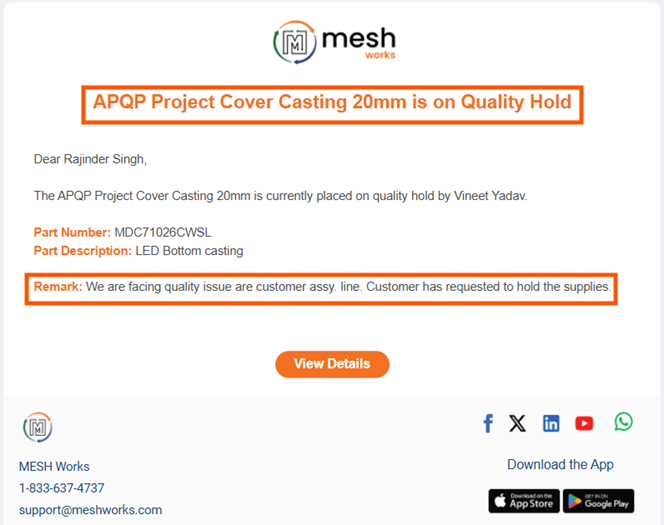
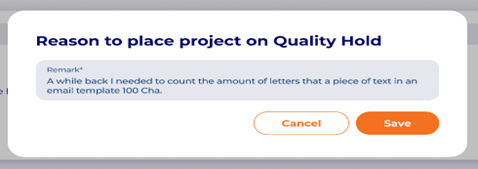 b. Team is notified of the APQP Project updated Status-
 c. APQP Projects list view with business status-
 APQP Projects - Created new gate closure requirement (approval type)
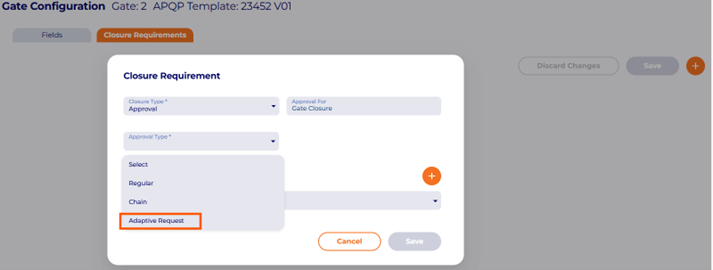
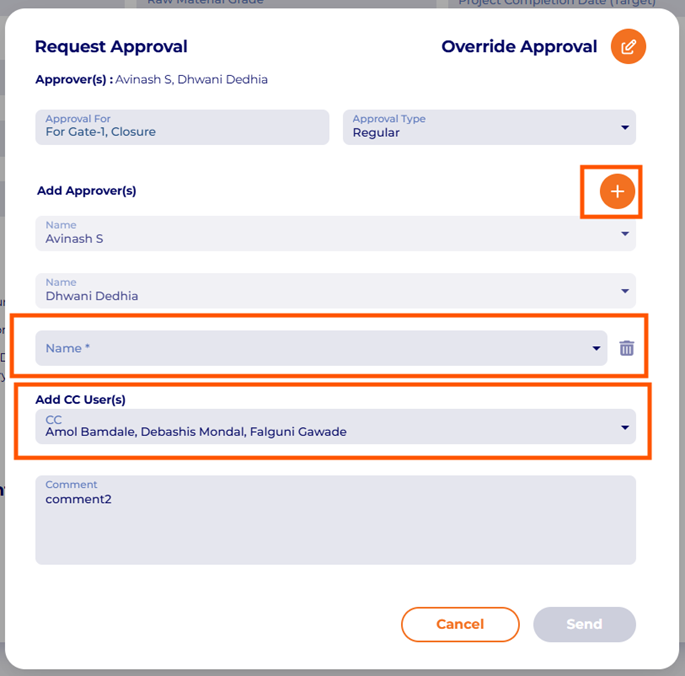
A new approval type, ‘Adaptive Request,’ has been added in the Closure Requirements. Approvers can be added by the approval requester at the time of sending the approval request from the Gate page. New approvers and other CC recipients can also be added to the request when using this approval type.
a. New Approval Type (Adaptive Request) in
APQP Project Template > Closure Requirement >Approval
 b. The requester can edit their approval request before sending it to the approvers-
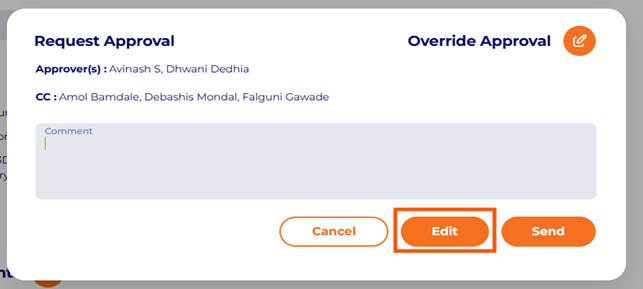 c. Editing Approval Request Before Sending to Approvers
 APQP Projects - APQP Gate approvers- A new permission created to allow user to approve for other users
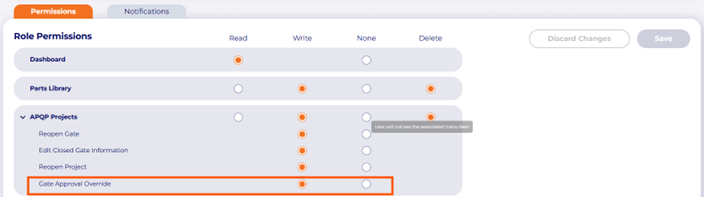
A new permission has been created to allow users to approve requests on behalf of other users in the APQP (Advanced Product Quality Planning) process. This feature facilitates collaboration and streamlines the approval workflow by enabling designated approvers to act on behalf of their team members as needed.
a. Set up for Gate Approval Override-
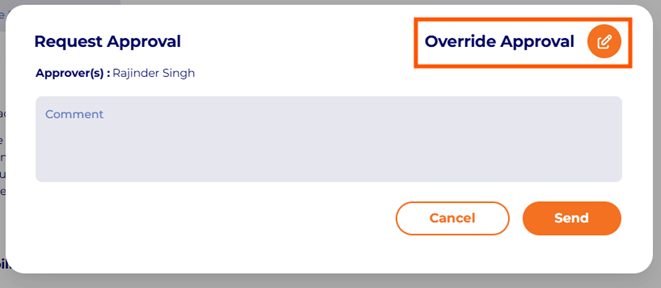
 b. Option to override the Gate approval (if user has permission to override the Gate Approval)-
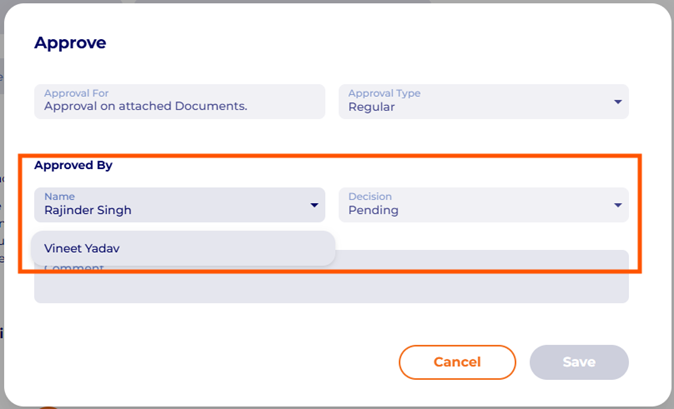
 c. User who has permission to override the Gate Approval, can user this option to approve the gate on behalf of others. User needs to select his name from the dropdown and can submit the decision-
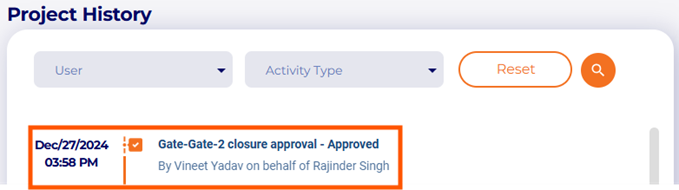
 d. APQP Project History- Override approvals monitored in the Project history-
 APQP Projects - Export Gantt chart] to Pdf file is download when we click on export Gantt chart button
When the user clicks on the “Export Gantt Chart” button, the Gantt chart will be downloaded as a PDF file. This functionality allows users to easily share or print the project timeline and important milestones in a standardized format, enhancing communication and documentation of project progress.
a. APQP Project Milestone > Gantt Chart > Export in PDF- User can now export the Gantt chart in PDF.
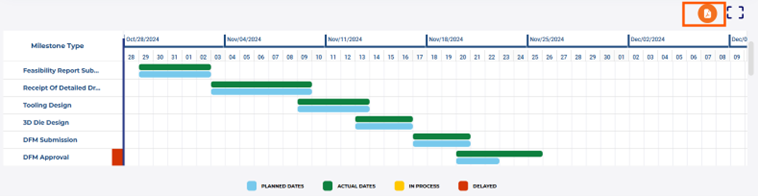 b. Export in PDF- User can select the duration of 31 Days and can export-
 SRM- Web Release
Enhance supplier reminders for certification updates
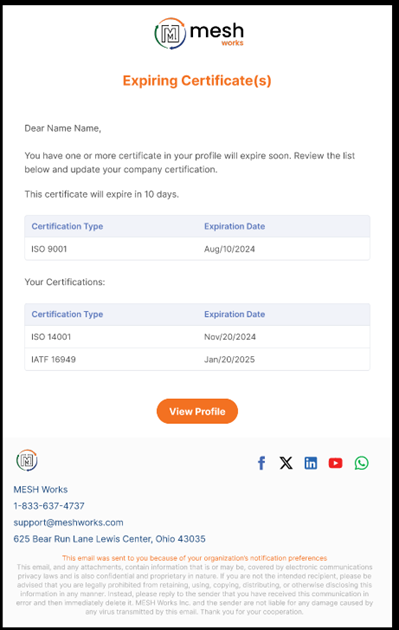
The purpose of this feature is to improve the existing email notification system for suppliers regarding certificate expirations. Now supplier will get notified by the system with all relevant certificates in a clear and organized manner.
 Goals:
To ensure that suppliers receive complete information regarding certificate expirations.
To align the email template with the visual design and user experience specified in Figma.
To improve supplier awareness, enabling timely actions for certificate renewals.
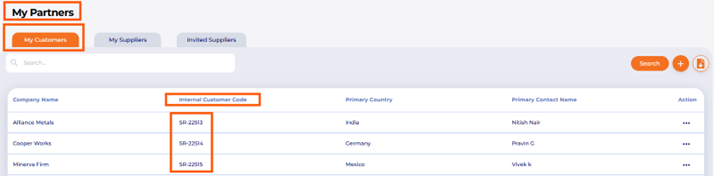
My Partners > My Customers-> Create field for internal customer code
 Standardize and Consolidate "Company Role Settings" for Procurement & Sales
This feature aimed to standardize and consolidate the “Company Role Settings” within the system. By sorting and updating permissions specifically for Procurement and Sales roles we have enhanced better usability, clarity, and efficient management of user roles and permissions across the organization.
a. Company Role Setup-
Company Profile > Users > Company Role Setting > Permission setting
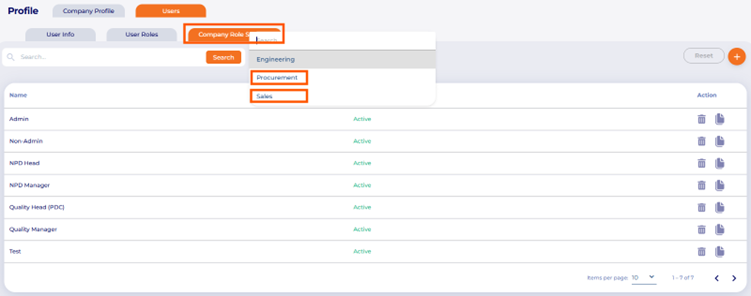 a. Sales – Company Role Setup
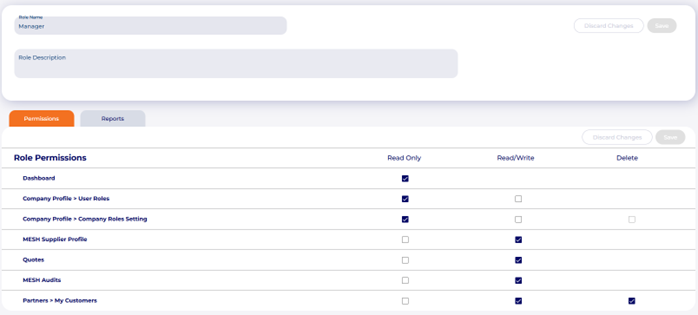 b. Procurement – Company Role Setup
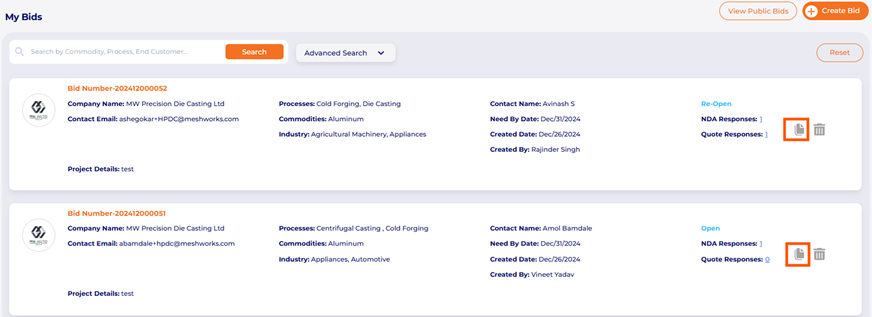
 Marketplace-> Copy/Clone existing Bid to a new draft
The “Copy/Clone Existing Bid to New Draft” feature aims to streamline the bidding process within the Marketplace by allowing users to easily duplicate existing bids. This functionality will enhance productivity and reduce the time required to create new bids, ensuring that all essential information and settings from previous bids are retained.
a. Clone feature on My Bids-
MESH Marketplace > My Bids > List Page > Clone my existing Bids to create a new Bid.
 Marketplace-> Supplier Inquiries/Discussions
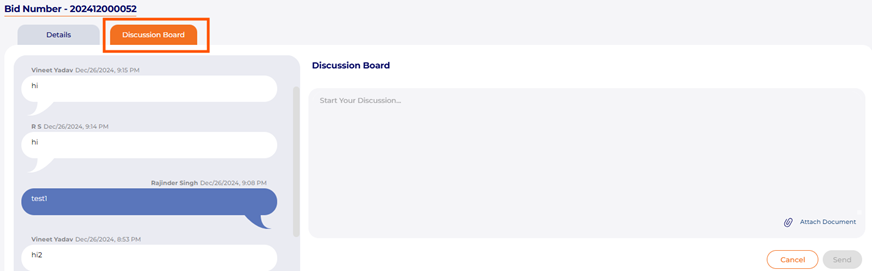
The “Supplier Inquiries/Discussions on Bids” feature aims to facilitate effective communication between suppliers and buyers within the Marketplace. This functionality will allow suppliers to ask questions and engage in discussions related to specific bids, ensuring clarity and improving the overall bidding process. By fostering open communication, this feature will ultimately enhance supplier involvement and promote better-informed bidding decisions.
a. Supplier View > Discussion Board – Supplier can now send any inquiries related to Bid.
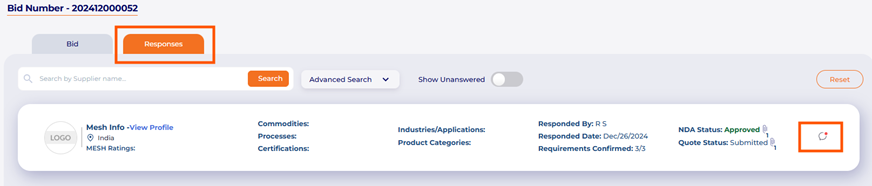
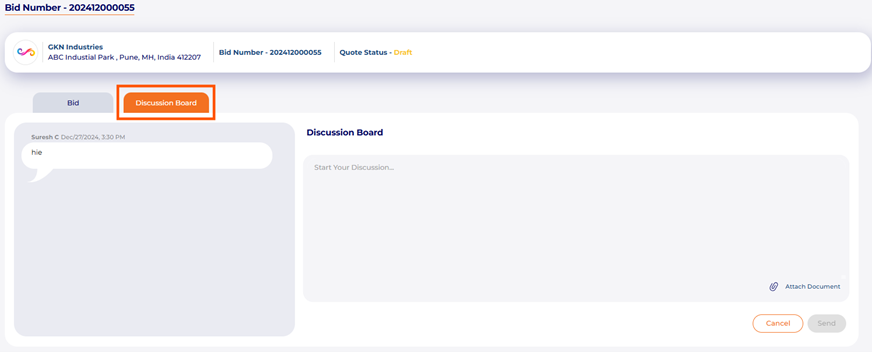 b. Customer View > Discussion Board – Buyer can now receive any inquiries related to Bid from suppliers & can respond back with suitable answers.